A stop can be a Google place, a travel task such as collecting a rental car, or any activity you want to schedule.
Add a stop with a place
- Open the intended day.
- Select Add stop.
- Enter a stop title.
- Search for and select a Google place.
- Set the start time, duration, and category.
- Add notes only when they are useful.
- Save the stop.
Selecting a search suggestion keeps the place and its available details together, including the address, website, opening hours, map location, and photos.

Add a stop without a place
Leave the place field empty for tasks that do not correspond to a business or point of interest. Platix will not guess a Google place from the stop title.
When a stop has no selected place, Platix can use the previous stop's map location to keep the route continuous. It does not copy the previous stop's photos.
Edit an existing stop
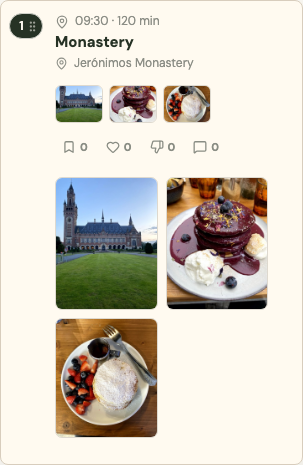
Select a stop from the day list to open its place details. If the place is already part of the trip, use the edit-stop action instead of adding a duplicate. You can change time, duration, category, notes, location, and practical details.
Reorder and delete
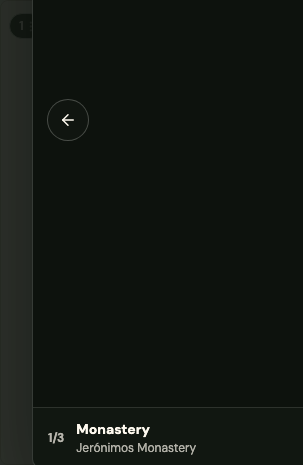
Drag the stop by its move handle to change the schedule. Delete requires confirmation. Other days and collections that refer to the same Google place are separate records and are not deleted with this stop.
Photo behavior
User-uploaded photos take precedence. If a stop already has uploaded media, Platix does not add Google place photos to that stop.