Take any trip you can open with you: as a PDF to print or read offline, or as one calendar event per day.
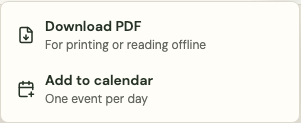
Download a PDF
- Open the trip.
- Select the download button in the top bar (on a phone, open the trip menu, or use the button beside Share).
- Choose Download PDF.
The PDF has a cover, an at-a-glance page with a route sketch and every day, one page per day with where you stay and each stop's time, place, address and notes, and a Directions link for every stop. A QR code on the cover opens the live trip, which has the map and any changes made after you saved the file.
US Letter or A4 paper is chosen from your browser's region.
Whose style the PDF uses
- Trips from a creator use the creator's style: their name, logo or initials, accent color and cover image, with a closing page about them and a link to their creator page.
- Everything else, including your own trips and Platix trips, uses Platix's style.
Creators can see how their trips will look by saving a PDF of any trip they own.
Purchased trips
A PDF of a trip you bought says Prepared for with your name and a short copy reference on every page. It's for your own travel, like the trip itself: please don't share or resell it.
Add a trip to your calendar
- Open the trip and select the download button, or the trip menu on a phone.
- Choose Add to calendar.
- If the trip has no dates yet, pick the date of Day 1. This only sets the dates in the calendar file; it doesn't change the trip.
- Select Download calendar file and open it.
Each day becomes one all-day event, so your calendar shows the trip without filling up. The event's notes list where you stay, each stop with its time, address, notes and a directions link, and a link back to the trip. The link opens the trip only for people who can already see it.
How to open the file:
- iPhone, iPad and Mac: Safari offers to add the events to Calendar.
- Google Calendar on a computer: in Google Calendar, open Settings > Import & export and import the file.
- Google Calendar on Android: it can't open calendar files. In the Add to calendar window, choose Add days to Google Calendar one at a time and add each day.
- Outlook: open the file, or import it from Outlook's calendar settings.
Calendar files don't update themselves. If the trip changes a lot, download the file again. Most calendar apps replace the days you already added instead of adding copies.
What isn't included
Google photos, maps, ratings, opening hours and phone numbers aren't included; use the live trip or the directions links for those. Costs and private notes are never included, and booking references appear only for people who can edit the trip.
Platix makes each file when you ask for it and doesn't keep a copy.