Turn an itinerary you've written, from your notes, a document, a PDF or your own blog post, into a private trip you can review, improve and then sell. Travelers bring a plan in through the home page instead; see Import an existing itinerary.
How do I open the import screen?
In Creator Studio, open Premium trips and select Import an itinerary. The import screen opens with Keep it as written selected. You can also open itinerary import directly.
The screen offers two ways to import:
- Keep it as written keeps your days, items and wording, and only finds your places on the map. Nothing is added, reworded or moved without you.
- Let Platix.io plan the days reads your itinerary into an outline you can edit, then plans each day from it.
For a sample itinerary that imports cleanly, and what Platix.io makes of each line, see Example: importing a Kyoto itinerary as written.
How do I add my itinerary?
Use Paste or upload for copied text or a file. Paste into the itinerary field, or select the Upload a file icon. Supported files are TXT, MD, VTT and SRT up to 2 MB, and text-based PDFs (see [Which PDFs can I import?](#which-pdfs-can-i-import)). Pasted text can contain up to 250,000 characters. Remove a selected file before switching back to pasted text.
To read a web page, choose Article link and enter the public article URL. Platix.io reads that page; it doesn't browse the other links on the site, sign in, get past paywalls, or run JavaScript to reveal hidden content. If a page can't be read, paste the text instead.
Add a Trip name if you want one, then select Create.
Don't include payment details, passwords, government ID numbers, private medical details or supplier logins. If your text does contain a card number, security code, private key, API key, a password written after "password:", or a passport or ID number, Platix.io replaces each one with a marker such as "[card number removed]" before anything reads the text, and deletes your original upload. Words alone, such as "secret beach", are left as written. With Let Platix.io plan the days, the review lists what was removed (never the values), and you confirm you've seen it before the trip is created. With Keep it as written, the trip says so in Planning health instead.
What does Keep it as written do?
Platix.io creates a private trip as soon as it has read your itinerary, without stopping to ask you anything. It isn't listed, priced or published. If you've left the page, Platix.io emails you a link to the trip. The trip opens with a short summary at the top of its overview: how many days, stops and trip notes it has, and how many places weren't found on the map. Select Plan it with AI instead there to have Platix.io plan the days from the same text, as a separate trip.
- Trip notes are sections for the whole trip, such as "Before you go". They show after Transport and before Day 1, each titled by its heading. Your introduction becomes the trip summary, and your itinerary's own title, such as its first heading, names the trip.
- An item that wasn't under a day heading goes after the day it follows, and Planning health lists it as Items placed by where they appear.
- If your text has no days Platix.io can rely on, everything goes on Day 1 in its original order, and Planning health reminds you to sort it into days.
- Page numbers, repeated headers and separator lines are left out.
- A private person's phone number or email, such as a guide's, is replaced with "[contact details removed]". A business's phone number stays. Edit the stop to add a contact back.
- Lines that look like they aren't part of the itinerary, such as a table of contents or credits, are kept as trip notes. Delete any you don't want.
- A heading that covers several days, such as "Days 3–4", becomes that many days.
Planning health on the trip lists each of these, so you can check them. Everything can be changed in the trip itself.
In the trip, each stop shows its name as the title and the rest of your words as its note. Heading and list marks such as # and - aren't shown. Each day goes by its heading without the day number, since Platix.io numbers the days ("Day 2 - Higashiyama" is Day 2, "Higashiyama"). A heading over a group of stops, such as "Where to eat", shows above the first of them. A length you wrote for a stop, such as "allow two hours" or "a 40-minute ferry", becomes its duration, and your words stay in its note. Anything your itinerary didn't say stays empty: a day without a stay shows "No stay set", a stop without a time shows "No set time", and a stop without a length you wrote shows no duration.
Platix.io looks up each place you name on the map, including streets, parks and neighbourhoods, in the area your day heading names, or else your trip's destination. A place it confirms gets its address and photos. When the place belongs to a meal or a stay, such as the restaurant for a dinner or the hotel you check in to, or when the map lists it under a slightly different name (for example without "Hotel", or in another language), the stop is marked Place found by Platix.io, and Publishing asks you to check it before you sell the trip. A place Platix.io couldn't match with certainty stays on its day as Map place not confirmed, with no pin, until you choose it. Tips, free time and transfers stay as text, without a pin or a route. Links in your notes stay exactly as you wrote them and can be opened.
What does Let Platix.io plan the days do?
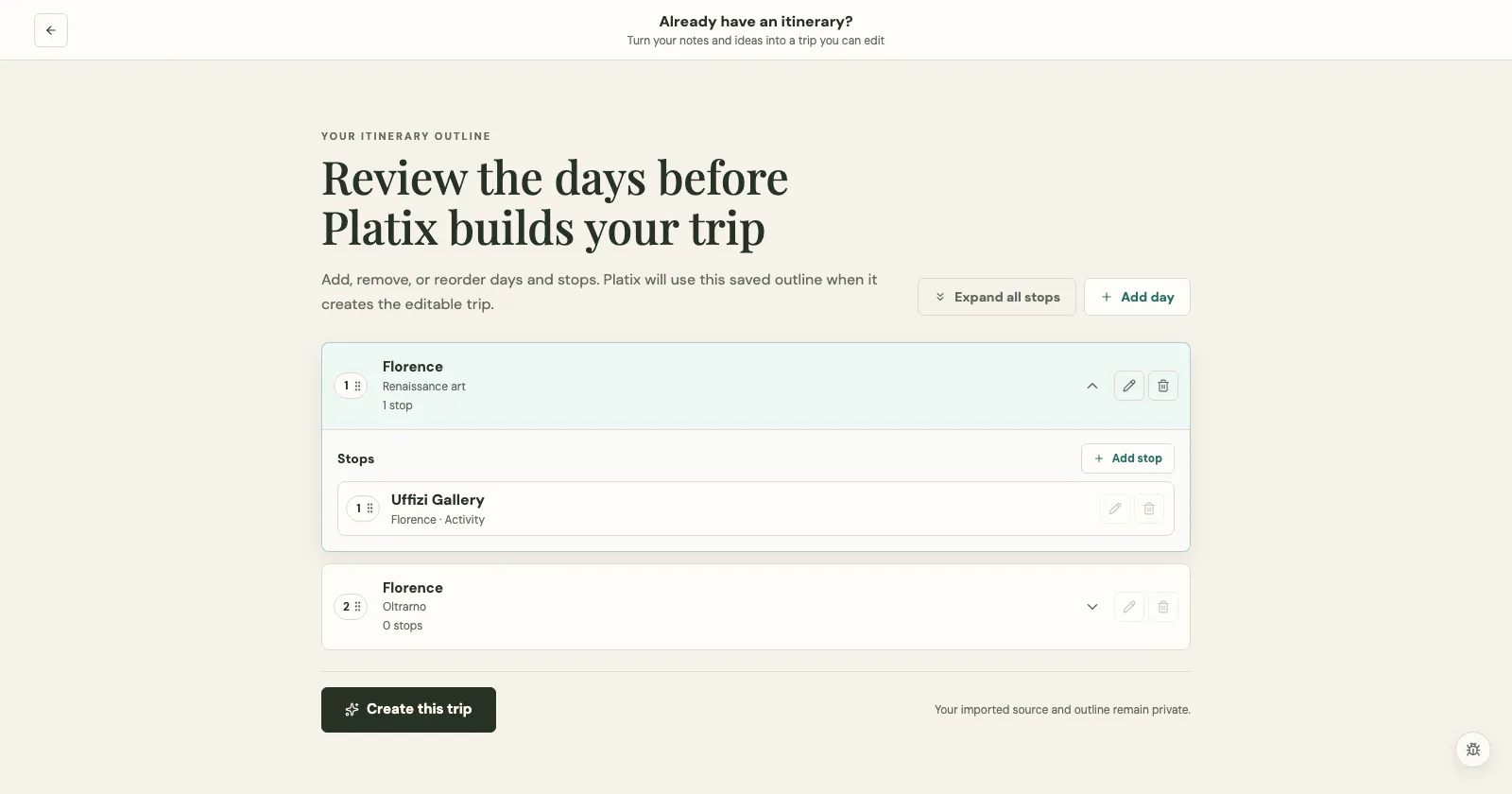
Platix.io opens one editable outline of your days. Each row shows a numbered drag handle, the city or region, the day title and its stop count. Days start collapsed; select a day to see its stops.
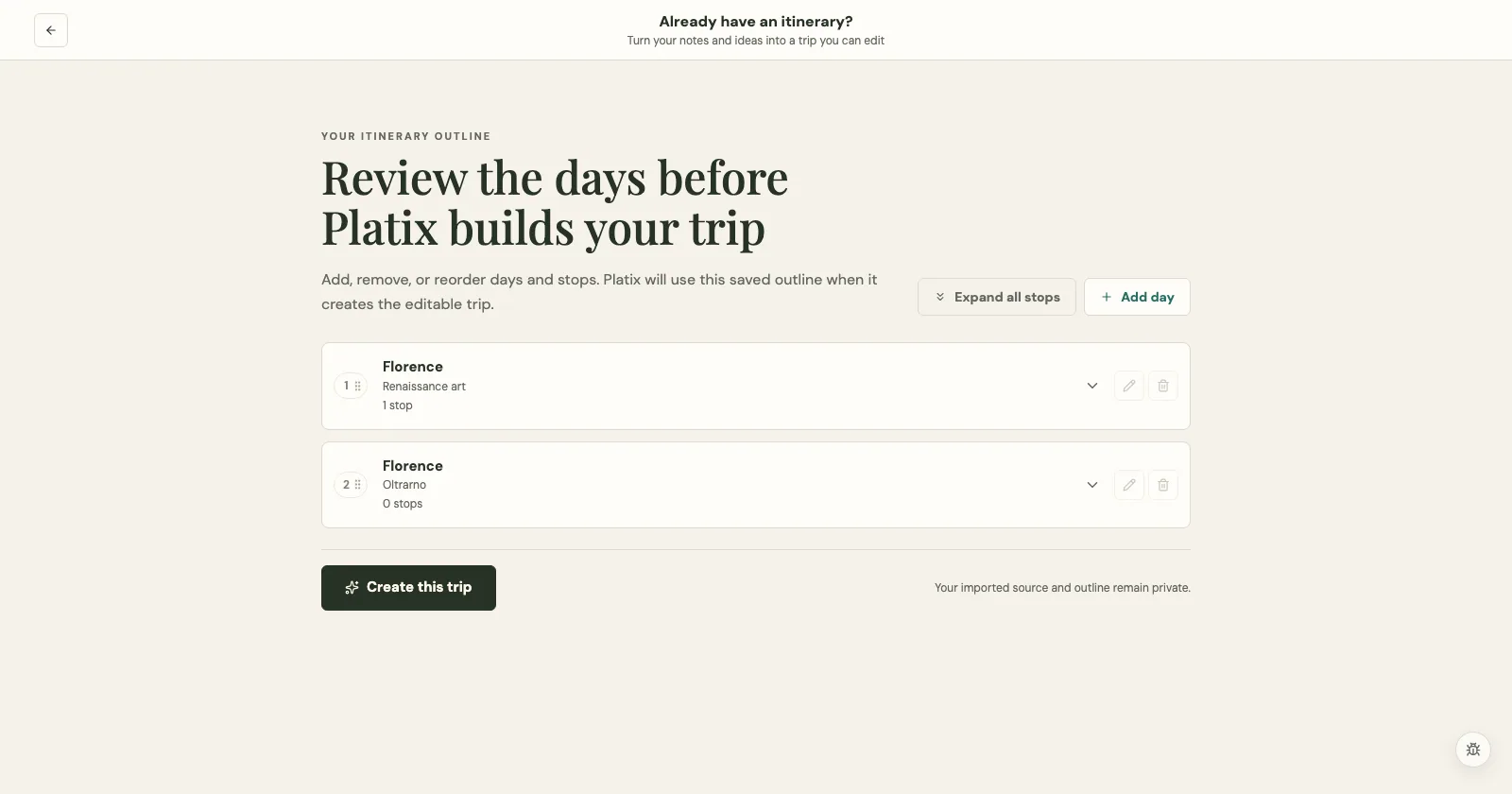
On this screen you can:
- Select Add day to add another day.
- Drag a day's numbered handle to reorder it.
- Edit or remove a day with its pencil or trash control.
- Open a day to add, edit or remove stops.
- Drag a stop's numbered handle to change its order within that day.
Changes save as you make them. Removing a day also removes its stops after you confirm. Fixed arrangements get an extra warning before a change is saved.
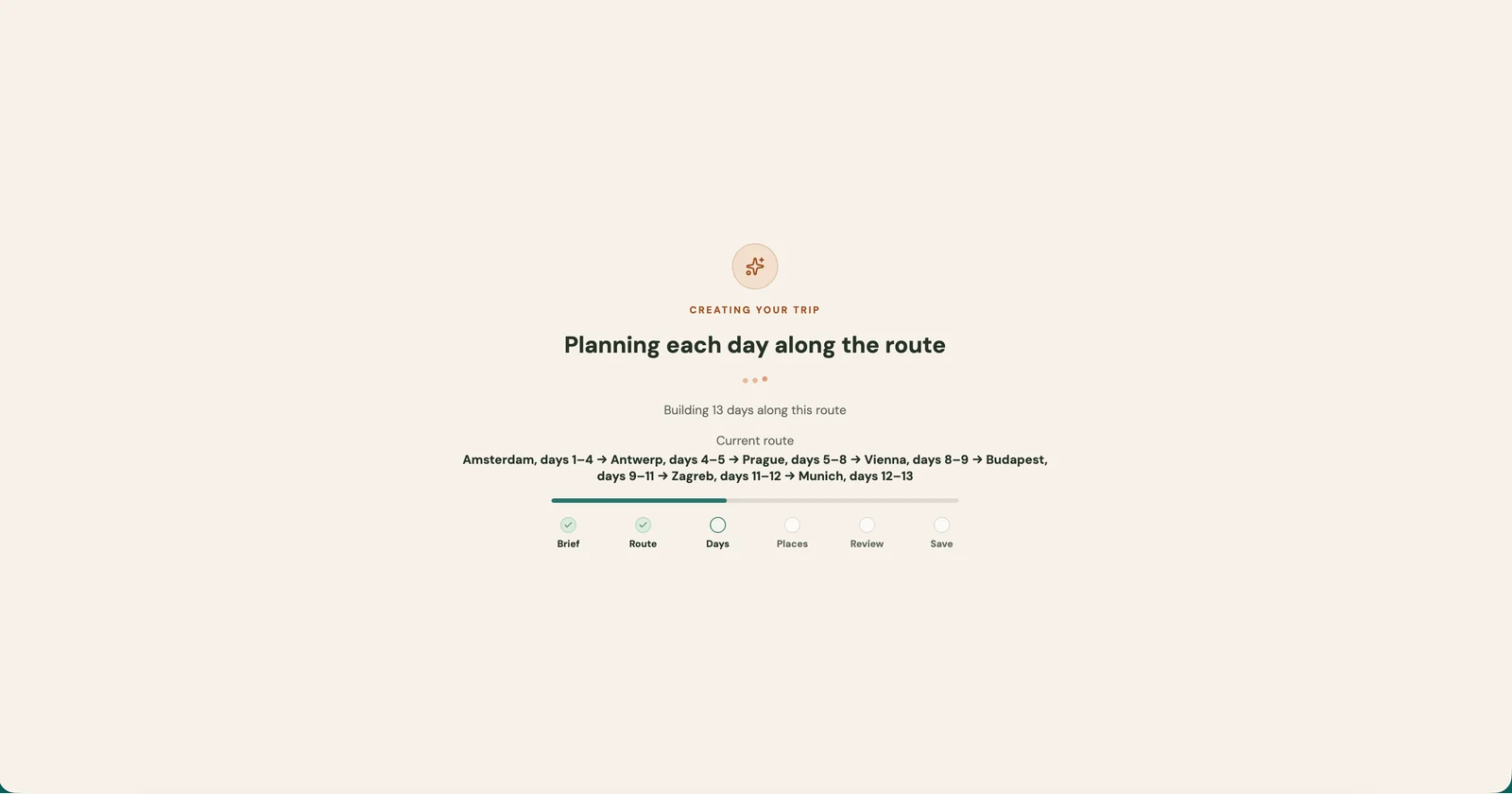
The outline is a starting point. You don't have to fill every day: when you select Plan days and create trip, Platix.io plans each day from your outline and your source. The completed private trip opens automatically.
An imported stop is what your source said, not proof of a verified place, reservation or current opening hours. Check the trip, and use trip review before you rely on it or sell it.
Can I resume, retry or cancel an import?
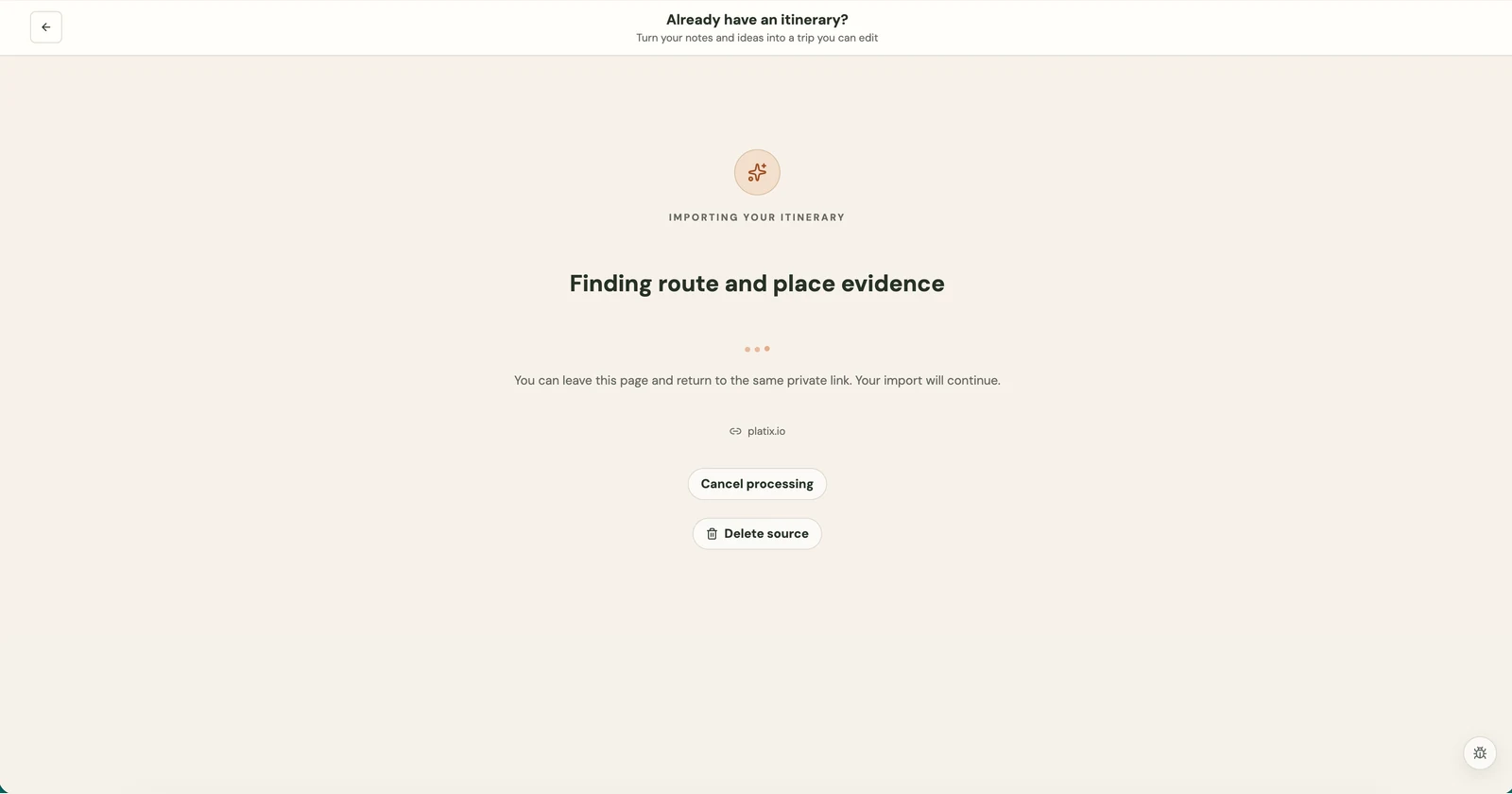
While Platix.io is reading or planning, you can return to the same private address. Keep it so you can resume instead of importing the same source again. Access still needs the right account.
If you paste or upload text you've already turned into trips, Platix.io lists those trips first. Select Open to go back to one of them, or Create a new trip to import the same text again as a fresh trip. The earlier trips stay as they are.
For a failure that can be retried, use Retry processing when offered. If an article is unsupported or blocked, change the source rather than retrying the same URL. Cancel processing stops work that can still be stopped; Delete source removes the source after you confirm. Neither undoes a trip that has already been created.
Which PDFs can I import?
Upload a file accepts PDFs:
- Use a text-based PDF, up to 20 MB and 80 pages. Scanned pages, password-protected or encrypted PDFs, and PDFs with forms, scripts or attached files can't be imported. Export a plain, text-based copy, or paste the text instead.
- Tick I'm permitted to upload this material and have Platix.io process it before you select Create. Only upload material you have the right to use.
- Platix.io checks the file, then reads its text. It doesn't open links, run anything in the file, or read images. Repeated page headers and footers are set aside.
- With Keep it as written, you check the text Platix.io read, page by page, and select Use this text before it becomes your itinerary. Columns and designed layouts can come out in a different order, so check that nothing is missing or out of order. If the text is jumbled, delete the source and paste the itinerary instead.
- Platix.io keeps the PDF privately for up to 30 days, then deletes it. If its text had a card number or ID number, Platix.io deletes the PDF as soon as it has replaced them. Deleting the source deletes the PDF and the text read from it.
Import can make mistakes. Review the trip before you rely on it, share it or sell it. Importing never lists, prices or publishes a trip.