Platix pays creators through Stripe. You can publish trips for sale and take paid reviews before you set up payouts: your earnings wait in Creator Studio, and Platix pays them once your setup is complete. Set up payouts once, whenever you're ready. It usually takes a few minutes.
What Stripe collects
Stripe asks for your identity details, your taxpayer identification number, and the bank account to pay. Stripe collects and verifies these directly. Platix never receives your bank account details, identity documents, or full taxpayer identification number. Platix only learns whether your setup is complete or needs attention, and the status of the payouts it sends you.
During setup you also accept Stripe's Connected Account Agreement, which Section 13 of the Terms of Service describes.
Payout setup is available to creators in the United States.
Set up
- Open Creator Studio > Earnings.
- In Payout setup, select Set up payouts.
- If Platix asks you to sign in again, do so. For your security, opening Stripe needs a recent sign-in, and setup continues once you're back.
- Stripe's secure setup opens. Enter your details, then finish.
- Stripe returns you to Earnings, and Platix checks your setup with Stripe.
You can leave at any time with Save for later. Earnings then shows In progress, and Continue setup picks up where you left off. If a setup link expires or was already used, Platix opens a fresh one automatically.
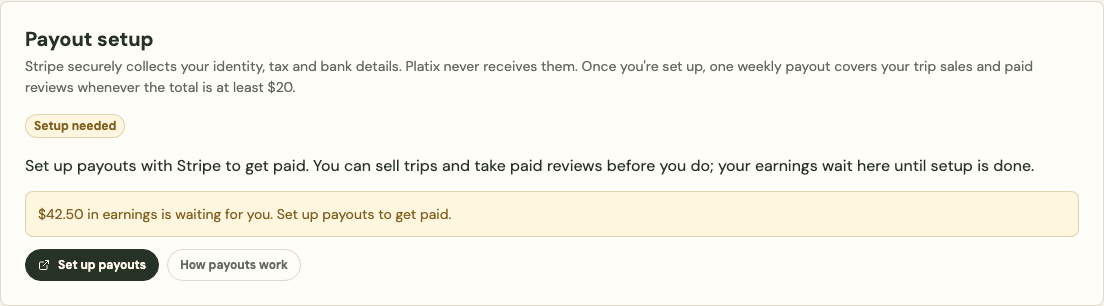
What each status means
| Status | What it means | What to do |
|---|---|---|
| Setup needed | You haven't started. Your earnings wait until you do. | Select Set up payouts to get paid. |
| In progress | You started but didn't finish. | Select Continue setup. |
| In review | Stripe is checking your details. This usually takes minutes, sometimes a few days. | Select Check status to refresh. |
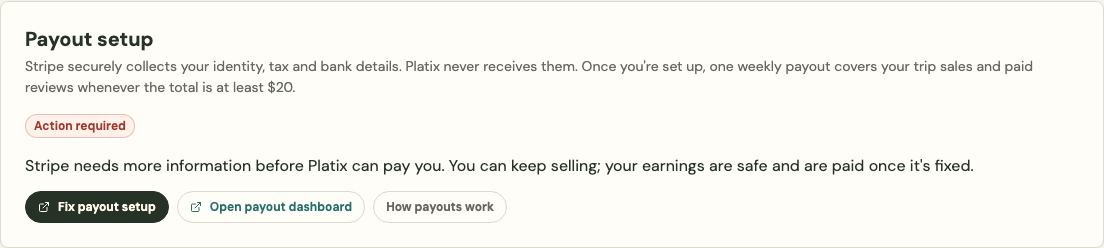
| Action required | Stripe needs more or corrected information, or couldn't pay your bank. You can keep selling; payouts wait. | Select Fix payout setup, or Update bank details after a failed bank payout. |
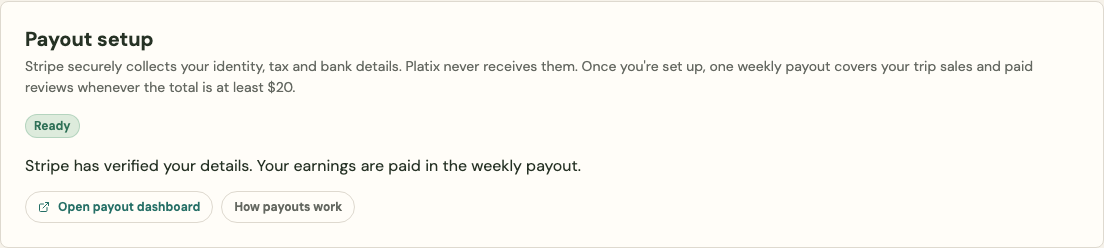
| Ready | Stripe has verified your setup. Your earnings are paid in the weekly payout. | Nothing. Open payout dashboard opens Stripe's dashboard. |
| Not available | Payout setup can't be used for this account right now, for example because Stripe declined it or Platix is reviewing the account. New sales and review orders pause. | Contact support@platix.io. |
The payout dashboard
Once your setup is Ready, Open payout dashboard opens Stripe's Express Dashboard. There you can see your Stripe balance, see when Stripe paid your bank, change your bank account, and get your tax forms.
When setup needs attention
Stripe sometimes asks for more information later, for example when a verification needs a new document, or when a bank payout fails. Payout setup then shows Action required, and Platix emails you. You can keep selling and taking reviews; your earnings keep adding up and are paid once your setup is Ready again.
If payout setup can't be used at all (Not available), for example because Stripe declined or closed the account, or while Platix reviews it:
- your premium trips stop taking new purchases, and you can't publish new ones;
- you aren't proposed for new paid reviews, and your review link takes waitlist requests instead of orders.
Existing buyers keep their trips, and reviews you've already accepted continue.